
Dec 17
What Is Salesforce Flow?
Contents
-
What is Salesforce Flow
-
What Can Flow Do. Real-World Capabilities
-
Why Flow is Crucial for your Salesforce Career
-
Key Concepts You Should Know
-
First Look at Flow Builder
-
Key Takeaways
Introduction
If you're new to Salesforce administration or automation, you've probably heard people talking about "Flow" and wondered what it’s about. In this article we’re going to explore;
- What Salesforce Flow actually is and what problem it solves
- The types of tasks Flow can automate for you
- Why Flow has become essential for Salesforce professionals (not just Admin’s)
- Basic terminology you need to know before building your first flow
- What to expect when you open Flow Builder for the first time
By the end of this, you'll have a solid foundation for understanding Salesforce automation and you'll be ready to explore the different types of flows available to you.
What is Salesforce Flow?
Flow is the only declarative tool (clicks not code) that can be used to automate business processes.
Think about all the repetitive tasks that happen in your Salesforce Org every day. When an Opportunity is Closed Won, someone needs to create a Contract. When a Lead is untouched for 7 days a task needs to be created for the Lead Owner to follow up. When a customer's address changes, someone needs to update all related Contact Records. These tasks are predictable, follow clear rules, and happen over and over again.
Salesforce Flow is the tool that automates these repetitive business processes using a visual, point-and-click interface.
Instead of writing code (Apex), you build "Flows" by dragging and dropping elements onto a canvas and connecting them together - like building with blocks.
Flow is a standout Salesforce tool for a number of reasons;
A brief note on automation history: If you've heard of Workflow Rules or Process Builder, those were earlier Salesforce automation tools that are now retired (support ended December 2025). Flow has replaced both of these tools and offers significantly more functionality. If you're learning Salesforce today, Flow is the automation skill you need to master.
Think about all the repetitive tasks that happen in your Salesforce Org every day. When an Opportunity is Closed Won, someone needs to create a Contract. When a Lead is untouched for 7 days a task needs to be created for the Lead Owner to follow up. When a customer's address changes, someone needs to update all related Contact Records. These tasks are predictable, follow clear rules, and happen over and over again.
Salesforce Flow is the tool that automates these repetitive business processes using a visual, point-and-click interface.
Instead of writing code (Apex), you build "Flows" by dragging and dropping elements onto a canvas and connecting them together - like building with blocks.
Flow is a standout Salesforce tool for a number of reasons;
- It's declarative, not code-based. You don't need to know programming languages like Apex. If you can follow a flowchart, or build a spreadsheet formula, you can build a flow.
- It's powerful enough to replace some developer work. Many tasks that used to require a Developer to write code can now be accomplished by an Admin using Flow. This includes creating Records, updating Fields, sending emails, and even calling external systems. Flow has lessened the load on Developers and added more power and flexibility to other Salesforce roles.
- It runs automatically in the background. Once you activate a Flow, it runs on its own based on the triggers you define - the Flow Type. You don't need to remember to run it manually or train users on a new process - it just works.
A brief note on automation history: If you've heard of Workflow Rules or Process Builder, those were earlier Salesforce automation tools that are now retired (support ended December 2025). Flow has replaced both of these tools and offers significantly more functionality. If you're learning Salesforce today, Flow is the automation skill you need to master.
What Can Flow Do? Real-World Capabilities
Let's look at specific examples of what Flow can accomplish. These scenarios will help you understand Flow's practical applications in daily Salesforce work.
Example 1: Auto-Update Fields Based on Conditions
Use Case: Your Sales Team frequently forgets to mark Leads as "Hot" when the “Annual Revenue” exceeds $500,000. You want this to happen automatically.
Impact: Your team can focus on selling instead of remembering to update administrative Fields. Your reports on “Hot Leads” are always accurate.
What Flow does:
- Watches for new Leads or changes to existing ones
- Checks if the Annual Revenue field is greater than $500,000
- Automatically sets the Rating Field to "High"
- Does this instantly as the record saves - no delay, no manual work, no missed Leads.
Impact: Your team can focus on selling instead of remembering to update administrative Fields. Your reports on “Hot Leads” are always accurate.

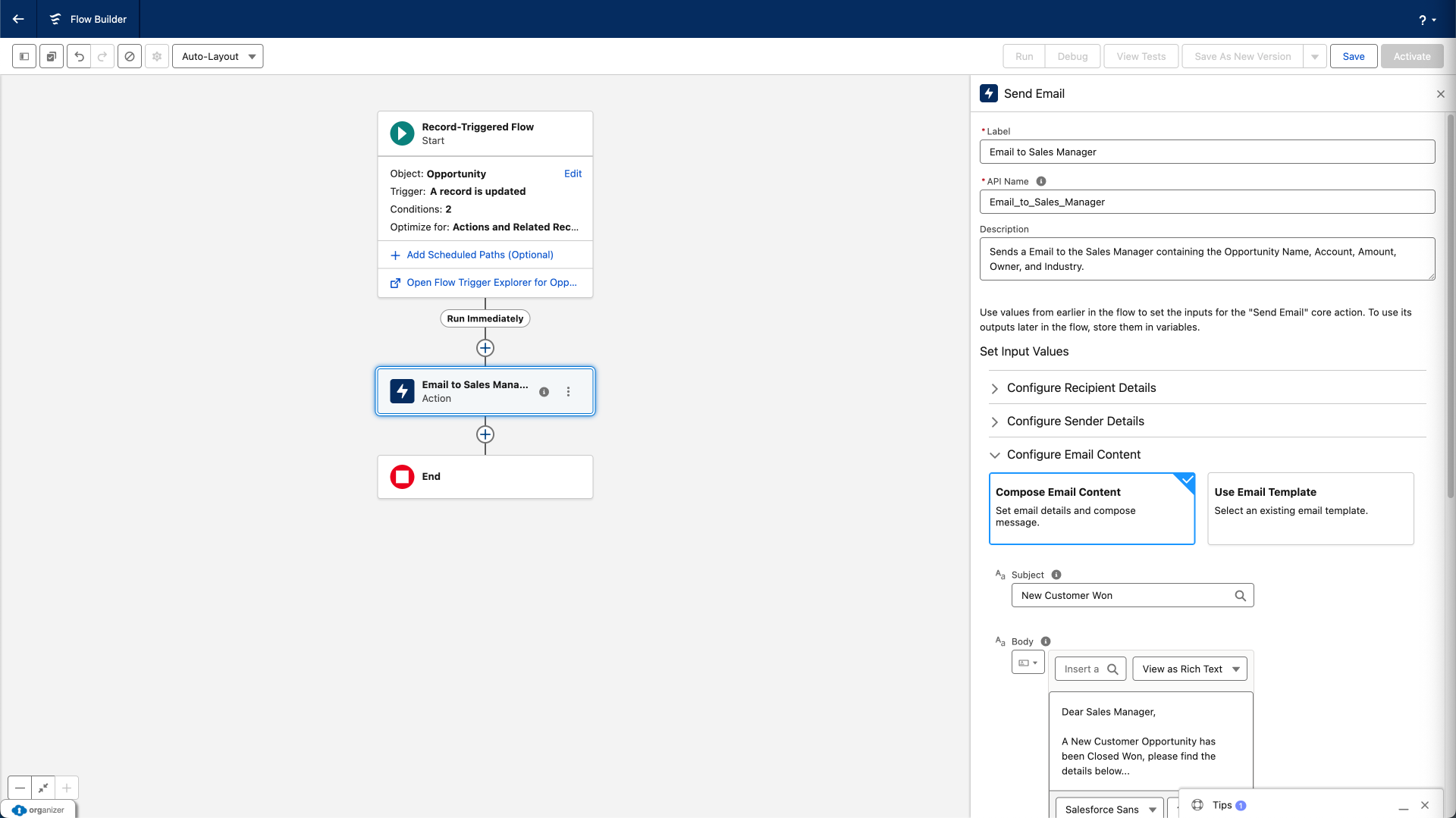
Example 2: Send Email Notifications Automatically
Use Case: When an Opportunity for a New Customer is marked as "Closed Won," you need to immediately notify the Sales Manager via email with details about the Opportunity.
Impact: New Customers get immediate attention from the right people. No one needs to remember to send the email - it happens automatically every time.
What Flow does:
- Detects when an Opportunity Stage Field changes to "Closed Won" and the Type Field is “New Customer”
- Retrieves information about the Opportunity (Opportunity Name, Account, Amount, Opportunity Owner, Industry)
- Composes an email with all relevant details
- Sends the email to the Sales Manager's email address
- All of this happens within seconds of the Stage change
Impact: New Customers get immediate attention from the right people. No one needs to remember to send the email - it happens automatically every time.
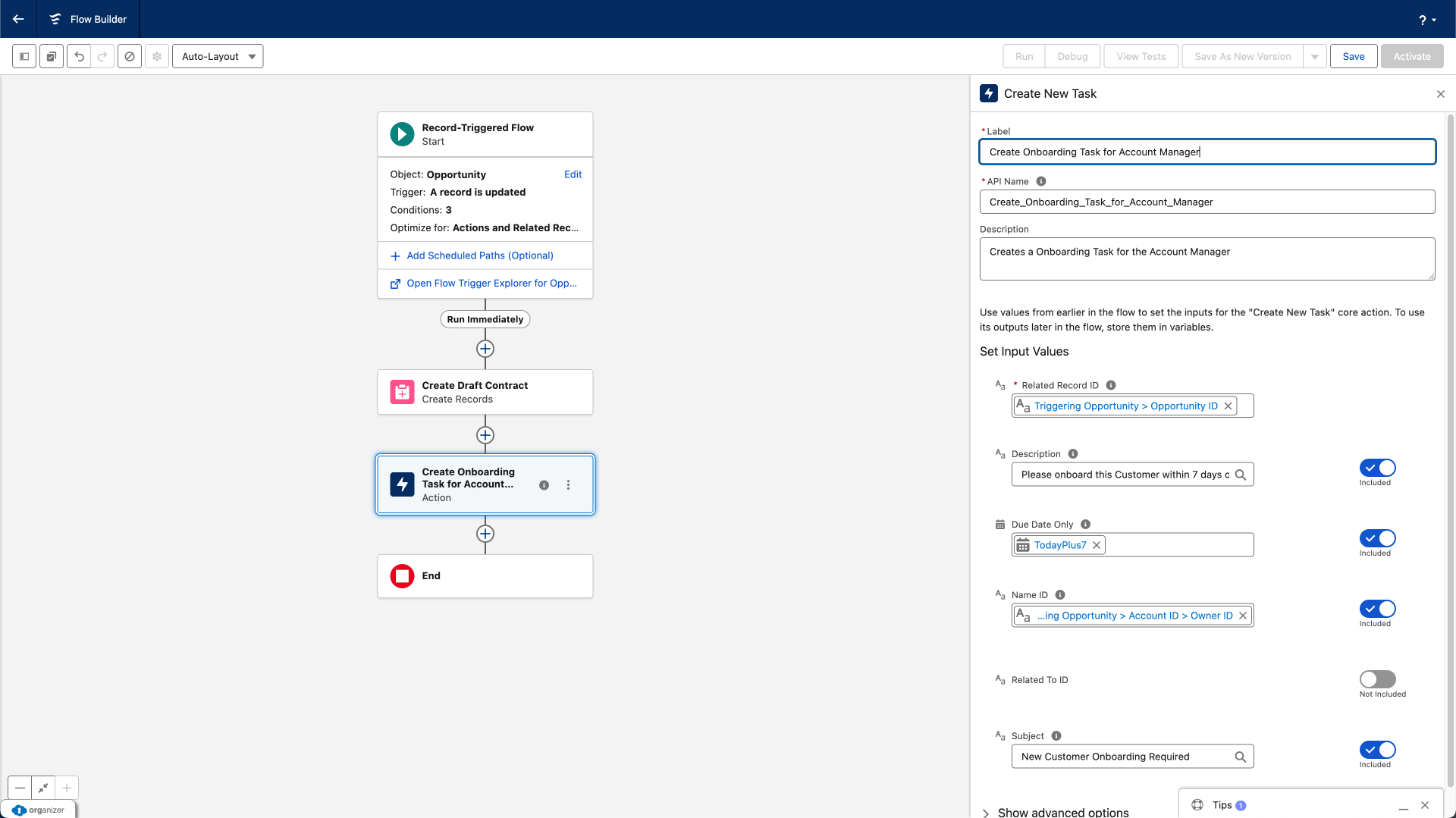
Example 3: Create Related Records Automatically
Use Case: When you Close Win a High-Value New Customer Opportunity ($500,000 or more), you want Salesforce to automatically create a draft Contract and a first task for the Account Manager.
Impact: Your post-sale process starts immediately without anyone needing to remember the steps. Nothing falls through the cracks.
What Flow does:
- Monitors Opportunities for Stage changes to "Closed Won"
- Checks if the amount is $500,000 or greater
- Checks if the Type is “New Customer”
- Creates a new Contract record linked to the Opportunity's Account
- Creates a Task assigned to the Account Manager with appropriate details
- Sets dates, fills in standard information, and establishes all the proper relationships between Records
Impact: Your post-sale process starts immediately without anyone needing to remember the steps. Nothing falls through the cracks.
Beyond the examples you’ve just seen, Salesforce Flow is capable of far more than simple automation. At a high level, Flow can:
- React to changes anywhere in Salesforce - Flow can run when Records are Created, Updated, Deleted, Scheduled, or even triggered by external events. This means automation can happen instantly, at the right moment, without Users needing to do anything manually.
- Work with data across multiple Objects - Flow isn’t limited to a single Record. It can read, create, update, and relate data across Accounts, Contacts, Opportunities, Custom Objects, and more - all in one automated process.
- Apply complex business logic without code - Using Decisions, Conditions, Formulas, and Variables, Flow can replicate real business rules such as approvals, thresholds, exceptions, and branching logic - all without writing Apex.
- Guide users through structured processes - With Screen Flows, Flow can act like a mini application inside Salesforce - collecting information, validating inputs, and guiding users step by step through a process.
- Run quietly in the background at scale - Many flows run completely behind the scenes, handling large volumes of Records automatically and consistently.
- Integrate with other systems and tools - Flow can send emails, post to Slack or Chatter, call external systems, and work alongside Apex when needed, making it a central hub for automation rather than an isolated tool.
- Replace and consolidate older automation tools - Flow has absorbed the responsibilities of Workflow Rules and Process Builder and extended far beyond them, becoming the single place to build and manage Salesforce automation.
Why Flow Matters for Your Career
Understanding why Flow is important will motivate you as you learn. Here are the key reasons Flow has become an essential skill:
- Flow is now THE automation tool in Salesforce - With Workflow Rules and Process Builder retired, Flow is the only declarative automation tool Salesforce is actively developing and supporting. Every new automation feature gets added to Flow first.
- Flow is required knowledge for Certification - The Salesforce Platform Administrator Certification exam dedicates significant coverage to automation, and Flow dominates that section. You cannot pass the Platform Administrator exam without understanding Flow.
- Flow skills make you more valuable - Organizations need Admins who can build automation. Being able to solve business problems with Flow - without requiring a developer - makes you a more capable and sought-after administrator.
- Flow bridges the gap to development - Learning Flow teaches you programming concepts (variables, logic, loops, conditions) without requiring you to write code. This foundation makes it easier to collaborate with Developers or potentially transition to development work later.
- Flow solves real problems quickly - Many business requests that seem complex ("Can we automatically do X when Y happens?") can be solved with Flow in minutes or hours rather than days. This responsiveness impresses stakeholders and demonstrates your value.
Key Concepts Every Beginner Should Know
Before you start building flows, let's define some essential terms you'll encounter constantly. Understanding this vocabulary will make learning much easier.
Don't worry about memorizing all these terms right now. They'll become familiar naturally as you work with Flow. Just remember you can refer back to this list whenever you encounter unfamiliar terminology.
- Flow: The actual automation you build. A Flow is like a set of instructions that tells Salesforce what to do under specific circumstances.
- Flow Builder: The visual tool where you create and edit flows. Think of it as the canvas where you do your work.
- Element: A building block within a flow. Each element performs one specific action (like "Get Records" or "Send Email" or "Make a Decision"). You connect elements together to create your automation.
- Trigger: The event that causes a flow to run. Common triggers include "when a record is created," "when a field changes," or "at a scheduled time." These are dictated by the Flow Type that you build - e.g. Record Triggered, Scheduled, Screen etc.
- Variable: A container that holds information while your Flow runs. For example, you might store a customer's email address in a variable so you can use it later in the Flow.
- Automation: A broad term for any process that runs automatically without human intervention. Flow is Salesforce's primary automation tool.
- Declarative: Building with clicks, not code. Declarative tools use visual interfaces where you select options from dropdowns and configure settings rather than typing programming commands.
- Record: A single entry in Salesforce - one Account, one Contact, one Opportunity, etc. Flows often work with records to read information from them or update their fields.
Don't worry about memorizing all these terms right now. They'll become familiar naturally as you work with Flow. Just remember you can refer back to this list whenever you encounter unfamiliar terminology.
Your First Look at Flow Builder
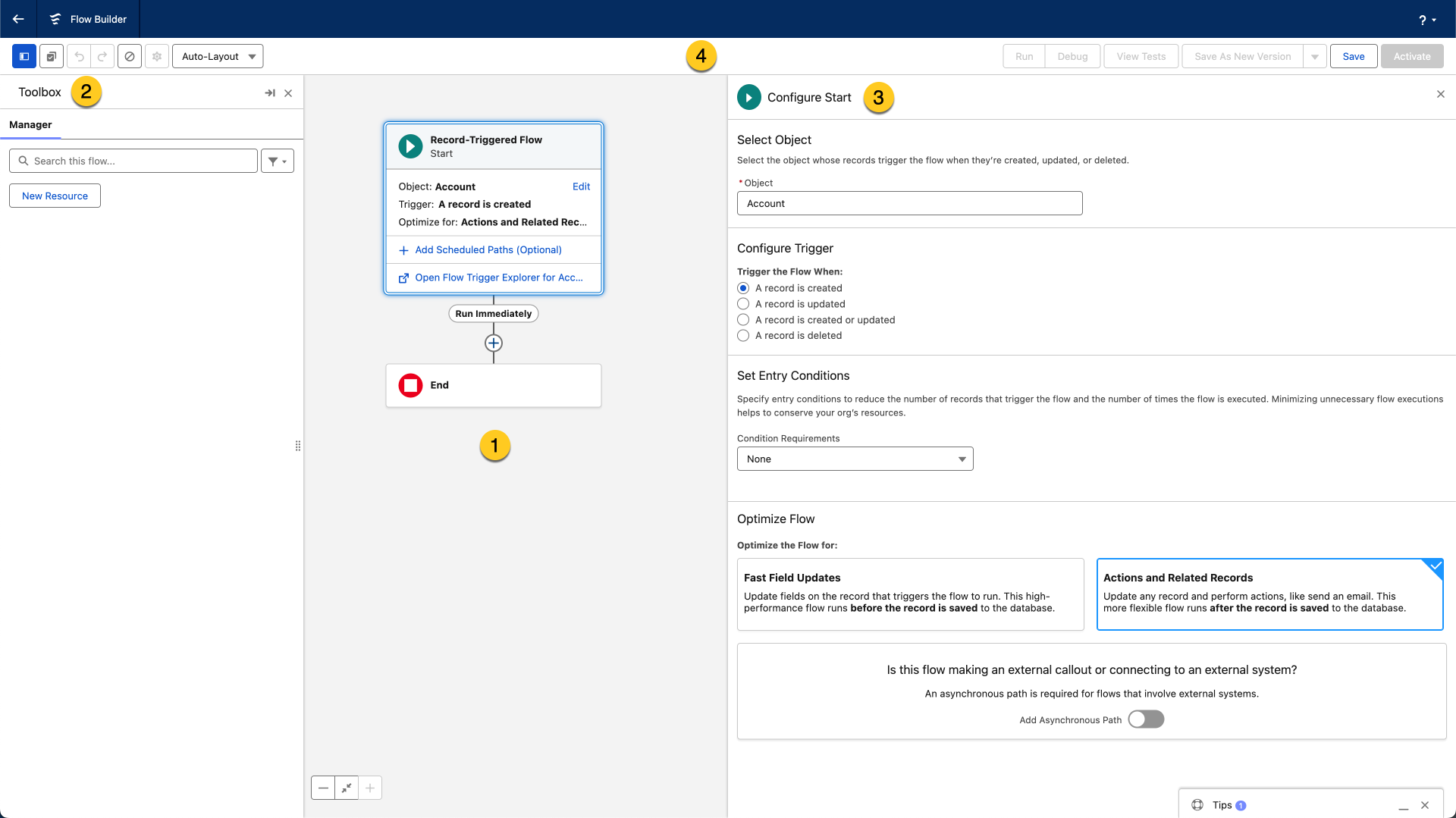
When you're ready to start building, you'll work in Flow Builder. While we'll cover Flow Builder in detail in a future article, here's what you can expect to see - the layout varies depending on if you are in Auto Layout or Freeform.
Note: Salesforce is constantly updating and enhancing Flow so you will see changes to the User Interface over time.You access Flow Builder through Setup.
The most common path is:
We'll be diving into creating Flows in future articles so dont worry about this too much yet.
- The Canvas: This is your main workspace - the large area where you'll arrange and connect your Flow elements. Think of it as a blank flowchart waiting for you to design your process.
- The Toolbox: Located on the left side, the toolbox contains all the elements you can add to your Flow. Elements are organized by category (Interaction, Logic, Data, etc.) to help you find what you need.
- Properties Panel: When you click on an Element, the Properties panel appears on the right side, letting you configure that specific element's settings.
- The Button Bar: Across the top, you'll find essential controls like Run, Debug (important for testing and troubleshooting), View Tests, Save As New Version, Save, Activate (to turn your Flow on).
Note: Salesforce is constantly updating and enhancing Flow so you will see changes to the User Interface over time.You access Flow Builder through Setup.
The most common path is:
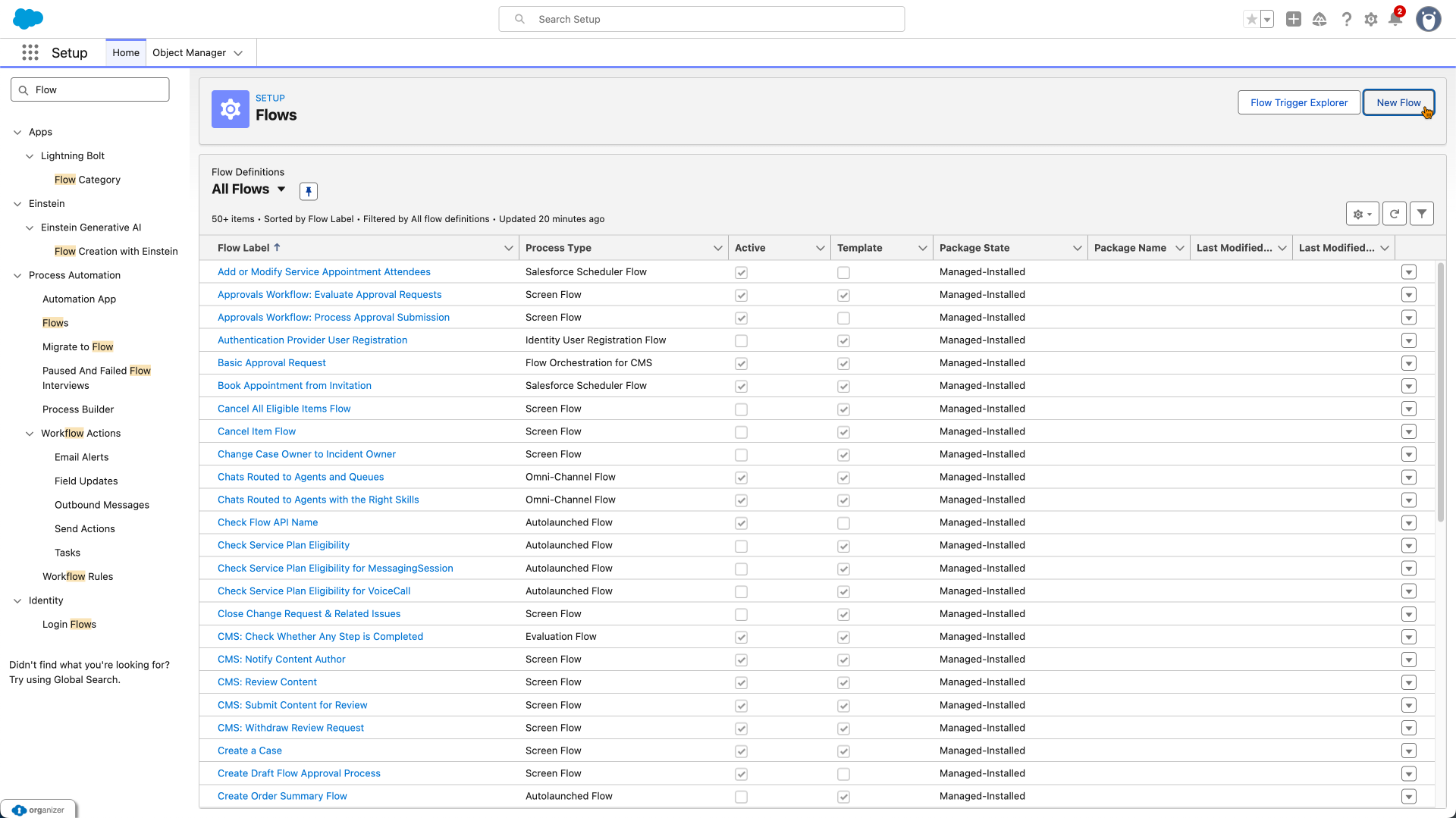
- Click the Setup gear icon in Salesforce
- Type "Flows" in the Quick Find box
- Click "Flows" under Process Automation
- Click "New Flow" to start building
- Choose Your Flow Type
We'll be diving into creating Flows in future articles so dont worry about this too much yet.
Flow Builder supports two layout styles;
Most beginners find Auto-Layout easier to work with.
The interface might seem overwhelming at first, but remember: you don't need to learn everything at once. You'll start with simple flows using just a few elements, and gradually add more complexity as you become comfortable.
- Auto-Layout (where Salesforce arranges elements automatically)
- Free Form (where you position elements manually).
Most beginners find Auto-Layout easier to work with.
The interface might seem overwhelming at first, but remember: you don't need to learn everything at once. You'll start with simple flows using just a few elements, and gradually add more complexity as you become comfortable.
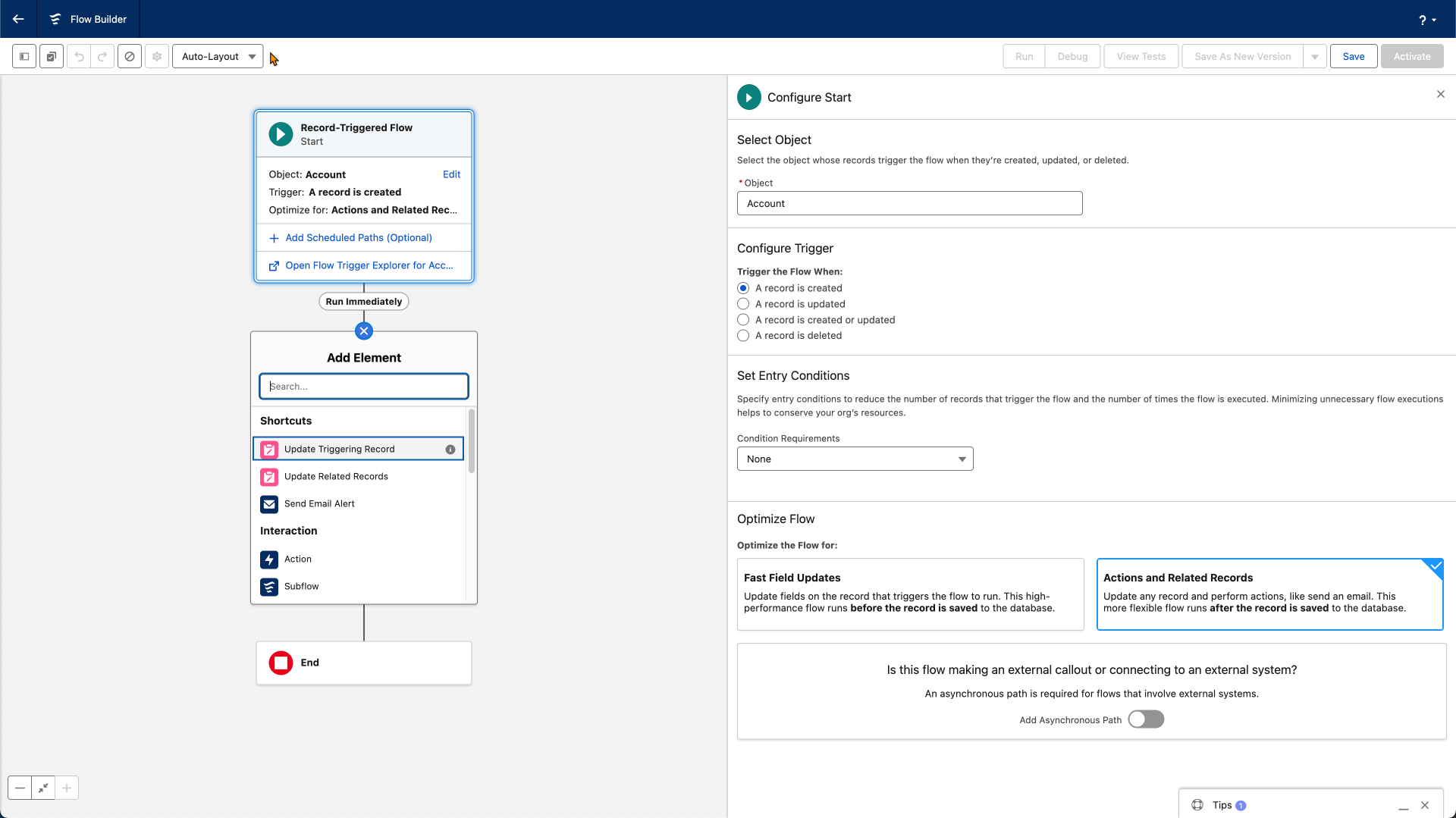
Auto-Layout
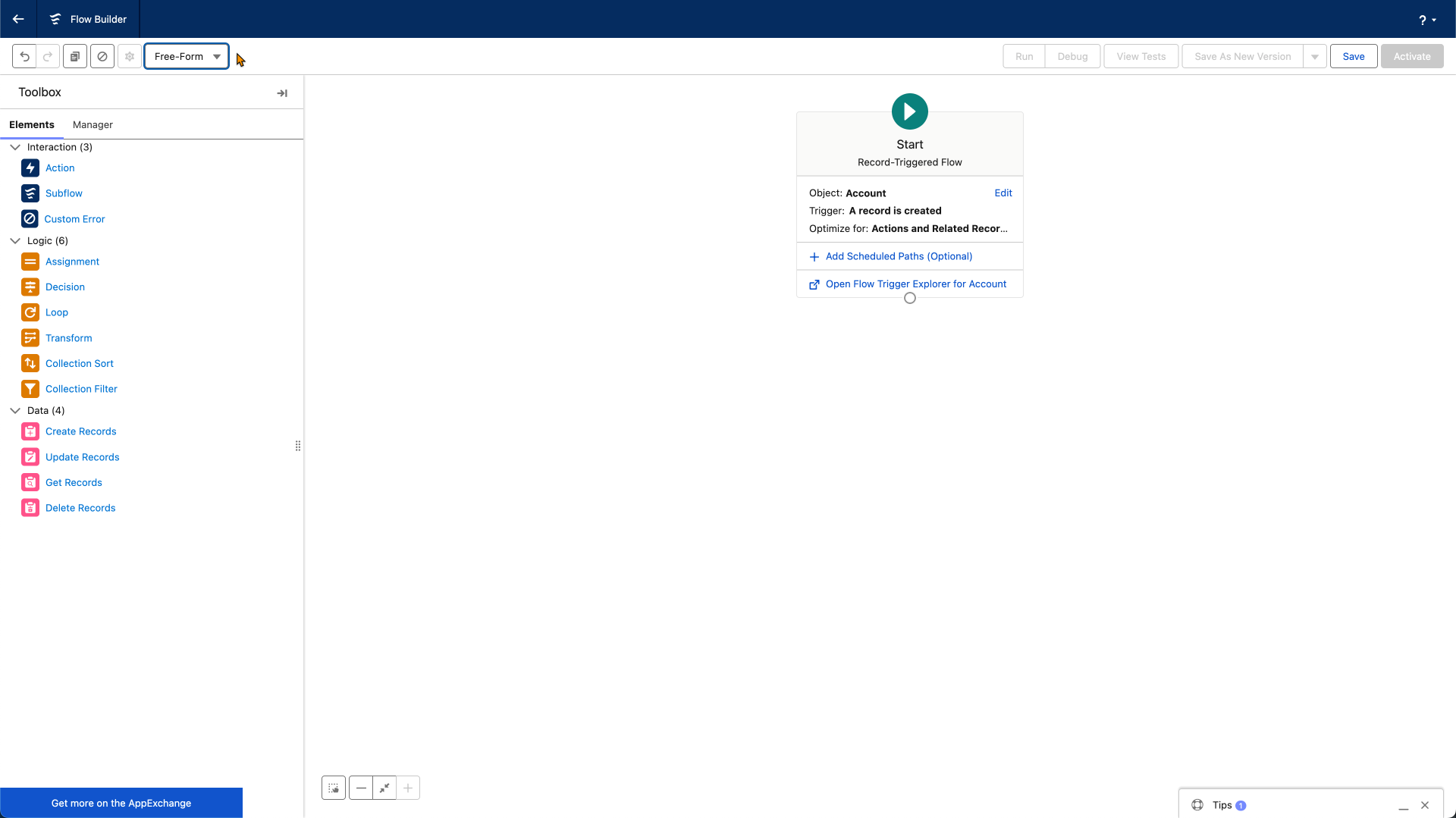
Freeform
What's Next: Understanding Flow Types
Now that you understand what Flow is and what it can do, the next step is learning about the different types of flows available to you. Not all flows work the same way - each type serves different purposes:
Think of Flow Types as the way that your Flow is Triggered into action.
In our next article, we'll explore each flow type in detail, helping you understand when to use each one. You'll learn to recognize which type of flow solves which kind of problem - an essential skill for building effective automation.
- Record-Triggered Flows run automatically when records are created, updated, or deleted.
- Screen Flows interact with users, displaying forms and collecting information.
- Schedule-Triggered Flows run at specific times (daily, weekly, etc.).
- Autolaunched Flows run in the background when called by other processes.
- Platform Event-Triggered Flows respond to messages from external systems.
- There are other various Flow Types but these are the main 5 that you will work with.
Think of Flow Types as the way that your Flow is Triggered into action.
In our next article, we'll explore each flow type in detail, helping you understand when to use each one. You'll learn to recognize which type of flow solves which kind of problem - an essential skill for building effective automation.
Summary: Key Takeaways
-
Flow is Salesforce's visual automation tool that lets you build sophisticated business processes using a point-and-click interface instead of writing code.
-
Flow handles common automation tasks like updating fields, sending emails, creating records, and notifying users—all automatically based on conditions you define.
-
Flow has replaced older tools like Workflow Rules and Process Builder, making it the essential automation skill for modern Salesforce professional.
-
Flow Builder is the interface where you construct flows by connecting elements together on a visual canvas.
-
Different Flow Types exist for different purposes - you'll learn about these types in the next article.
-
Learning Flow enhances your career by making you a more capable Salesforce Professional.
Flow might seem complex when you first encounter it, but remember that every Salesforce expert was once a beginner - every Architect was once a novice. Start with simple automations, build confidence with small wins, and gradually increase complexity.
The investment you make in learning Flow will pay dividends throughout your Salesforce career - automation is one of the most valuable skills you can develop as a Salesforce professional.
The investment you make in learning Flow will pay dividends throughout your Salesforce career - automation is one of the most valuable skills you can develop as a Salesforce professional.

Copyright © 2025
Company
-
About
-
Careers
-
Team
-
Contact
Legal
-
Privacy Policy
-
Terms of Use
-
Cookie Policy