
Dec 19
The Building Blocks of Flow
Contents
-
How Flows Work: Understanding the Three Building Blocks
-
Building Block 1: Flow Types (The "When")
-
Building Block 2: Flow Elements (The "Actions")
-
Building Block 3: Flow Resources (The "Data")
-
Putting It All Together: A Simple Example
-
Key Takeaways
Introduction
In the previous article, you learned what Salesforce Flow is and why it matters for your career as a Salesforce Professional. Now, before we dive into building Flows, you need to understand the basic structure of how Flows work; you need to understand how the pieces work together before we can start building with them.
We’re going to take a look at;
- The three essential building blocks that make up every Flow
- How Flow Types, Elements, and Resources work together to create Flows
- A brief introduction to the different types, elements, and resources available
- A simple example showing all three building blocks in action
This article is intentionally high-level.
Think of it as a roadmap showing you the landscape before we explore each area in detail. In the articles that follow, we'll dive deep into each building block, but for now, focus on understanding how the pieces fit together.
How Flows Work: Understanding the Three Building Blocks
Every Flow you build in Salesforce - whether simple or complex - is created from three fundamental building blocks. Understanding these three components and how they interact is essential before you start building.
Flows are made up of 3 key parts;
- Flow Type - This is how the Flow is launched, how it is called into action. The Flow Type determines what the Flow can do. For example, should the Flow be called into action when a Record Changes, when a User clicks a button, or run every day at 09:00.
- Elements - These are the building blocks of Flow, they are how it knows what to do, and how to do it. For example, should the Flow create a Record, send an Email, or communicate with an external system.
- Resources - These are pieces of information or data that are going to be used in the Flow. For example, the Lead Name, the Email address, or a Formula to calculate a commission amount.
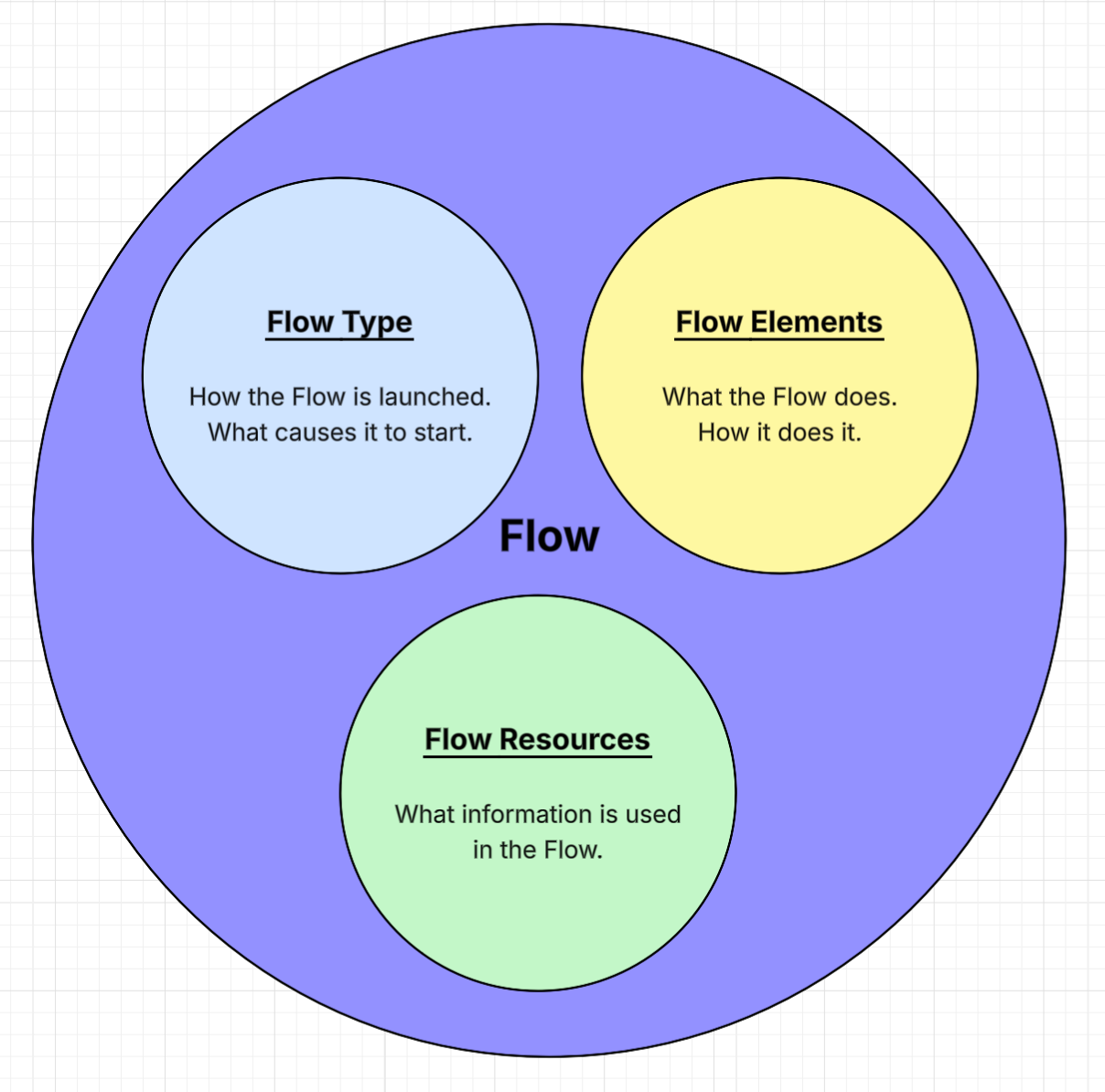
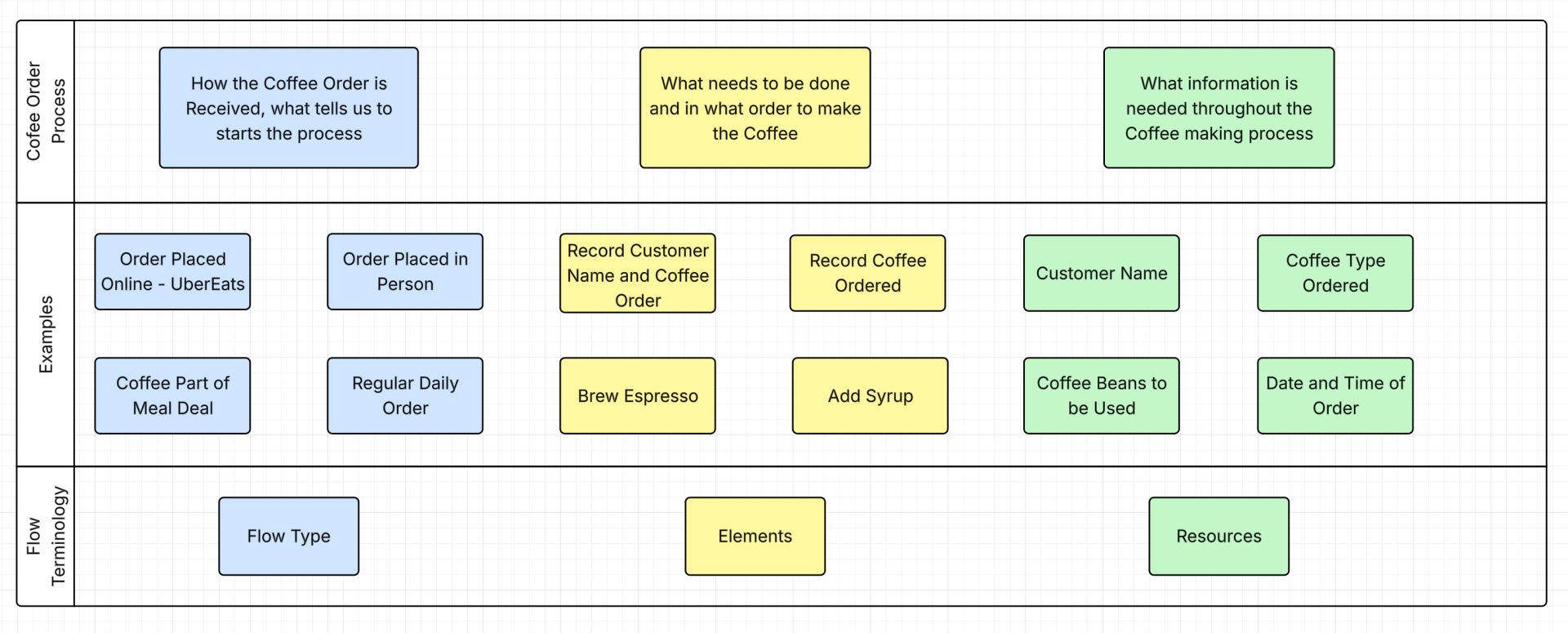
Think of building a Flow like running a coffee shop, When a customer orders coffee, three things happen:
- How the order is received - The customer places their order at the counter, through the drive-through, or via mobile app.
- The process to make the coffee - Grind the beans, brew the espresso, steam the milk, add flavors, pour into the cup.
- The information needed - Customer's name for the cup, type of beans to use, milk preference, size, number of shots.
Flow works exactly the same way:
- Flow Type is how the automation is triggered (the order method) - when a record changes, when a user clicks a button, on a schedule.
- Flow Elements are the steps that execute (making the coffee) - update a field, send an email, make a decision, create a record.
- Flow Resources are the information you use (the order details) - variables hold data, formulas calculate values, text templates format messages.
These three building blocks work together in every Flow:
- You choose a Flow Type based on when you want the automation to run (when a record changes, when a user clicks a button, on a schedule, etc.)
- You add Flow Elements to define what happens - the actual work the Flow performs (update a field, send an email, make a decision, create a record)
- You create Flow Resources to store and work with data - variables hold information, formulas calculate values, text templates format messages
The Flow Type provides the trigger or launching point.
The Flow Elements are the actions that execute - what happens.
The Resources are the data those actions work with.
All three must work together for your automation to function.
Let's look at each building block in more detail. Remember, this is just an overview - we'll explore each of these topics thoroughly in dedicated articles.
Building Block 1: Flow Types (The "When")
The Flow Type determines when and how your Flow runs. This is your starting point - before you can build any automation, you need to decide what triggers it.
Think of Flow Types as answering the question: "When should this automation run?"
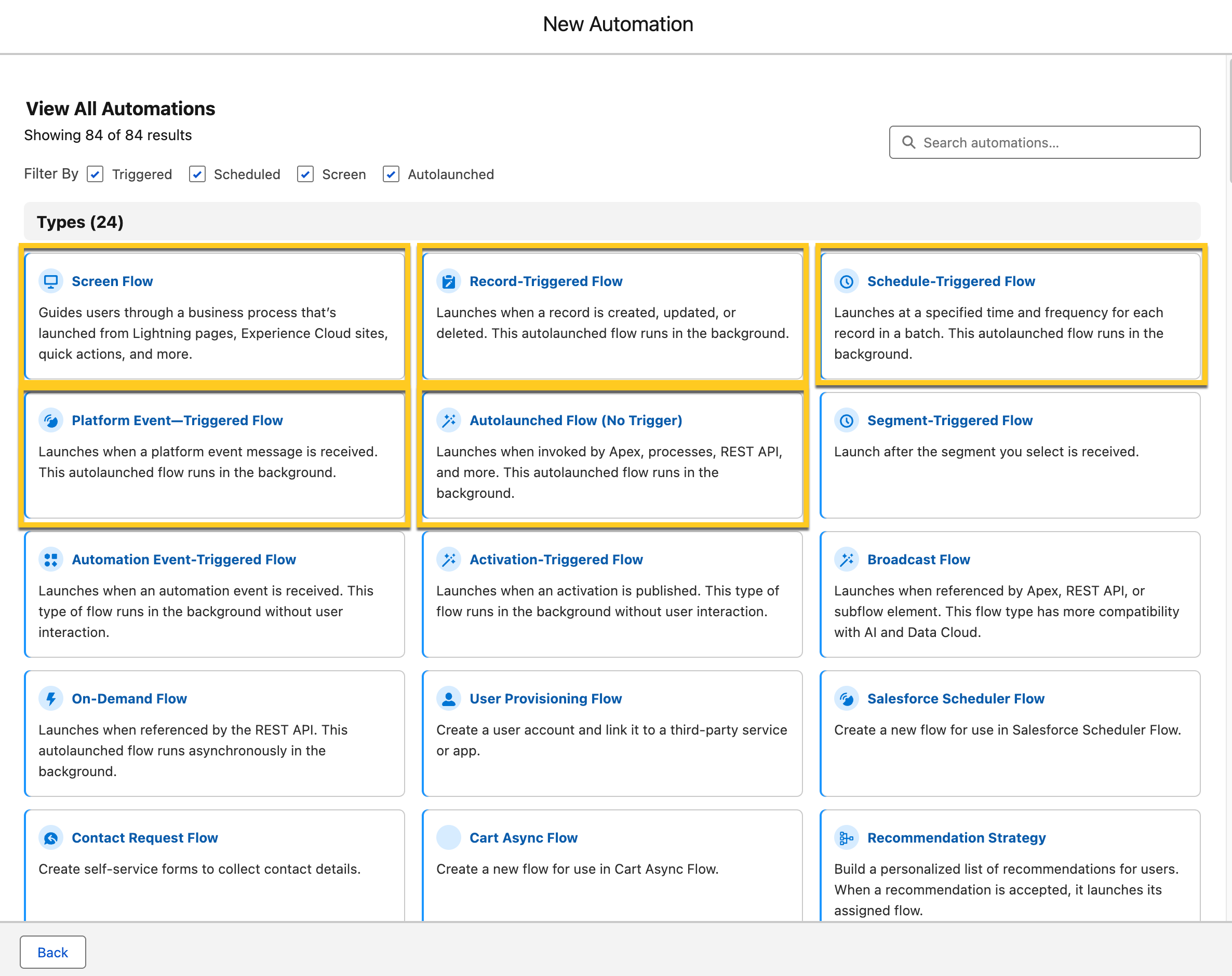
Here's a high-level overview of the main Flow types you'll work with. We'll explore each of these in much greater detail in the next article. The main 5 that you need to be comfortable with are Record Triggered Flows, Screen Flows, Scheduled Triggered Flows, Platform-Event Triggered Flows, and Autolaunched Flows.
Think of Flow Types as answering the question: "When should this automation run?"
Here's a high-level overview of the main Flow types you'll work with. We'll explore each of these in much greater detail in the next article. The main 5 that you need to be comfortable with are Record Triggered Flows, Screen Flows, Scheduled Triggered Flows, Platform-Event Triggered Flows, and Autolaunched Flows.
Record-Triggered Flows
Record-triggered Flows run automatically when a Salesforce record is created, updated, or deleted. These are the most commonly used Flows because they handle everyday automation tied to your data changes.
What it does: Watches for changes to records and takes action based on those changes.
When to use it: When you need automation that responds to data changes - like updating fields when an Opportunity closes, creating Tasks when a Case is closed, or sending notifications when records are modified.
Quick note on Before-Save vs After-Save: Record-triggered Flows come in two varieties. Before-Save Flows run before the record is saved to the database (very fast, but limited to updating the triggering record). After-Save Flows run after the record is saved (full functionality, can create other records and perform additional actions). We'll cover this distinction in detail in the next article.
What it does: Watches for changes to records and takes action based on those changes.
When to use it: When you need automation that responds to data changes - like updating fields when an Opportunity closes, creating Tasks when a Case is closed, or sending notifications when records are modified.
Quick note on Before-Save vs After-Save: Record-triggered Flows come in two varieties. Before-Save Flows run before the record is saved to the database (very fast, but limited to updating the triggering record). After-Save Flows run after the record is saved (full functionality, can create other records and perform additional actions). We'll cover this distinction in detail in the next article.
Screen Flows
Screen Flows display interactive screens to users, allowing them to input information, make selections, and see guided processes.
What it does: Shows forms and screens where users can enter data, view information, and navigate through multi-step processes.
When to use it: When you need user interaction - collecting information only users know, guiding users through complex processes, building custom tools or wizards specific to your business needs.
What it does: Shows forms and screens where users can enter data, view information, and navigate through multi-step processes.
When to use it: When you need user interaction - collecting information only users know, guiding users through complex processes, building custom tools or wizards specific to your business needs.
Schedule-Triggered Flows
Schedule-triggered Flows run automatically at times you specify - daily, weekly, or on particular dates - and process batches of records that meet your criteria.
What it does: Executes on a schedule and finds all records matching your conditions, performing the same actions on each one.
When to use it: For time-based automation - sending periodic reminders, performing nightly batch updates, cleaning up old data, or processing records based on date criteria.
What it does: Executes on a schedule and finds all records matching your conditions, performing the same actions on each one.
When to use it: For time-based automation - sending periodic reminders, performing nightly batch updates, cleaning up old data, or processing records based on date criteria.
Autolaunched Flows
Autolaunched Flows have no trigger of their own. They run when something else calls them: another Flow, an Apex class, an API call, or a process.
What it does: Provides reusable logic that other processes can invoke, running in the background without user interaction.
When to use it: When you need the same logic in multiple places (called as a subFlow), when external systems need to trigger Salesforce automation via API, or when you want to separate complex logic into manageable, reusable components.
What it does: Provides reusable logic that other processes can invoke, running in the background without user interaction.
When to use it: When you need the same logic in multiple places (called as a subFlow), when external systems need to trigger Salesforce automation via API, or when you want to separate complex logic into manageable, reusable components.
Platform Event-Triggered Flows
Platform event-triggered Flows respond to event messages - notifications sent when something happens in Salesforce or external systems.
What it does: Subscribes to platform event messages and automatically runs when those specific events are published.
When to use it: For real-time integration with external systems, processing IoT (Internet of Things) device data, or implementing event-driven architecture where systems communicate through messages rather than direct calls.
What it does: Subscribes to platform event messages and automatically runs when those specific events are published.
When to use it: For real-time integration with external systems, processing IoT (Internet of Things) device data, or implementing event-driven architecture where systems communicate through messages rather than direct calls.
Other Flow Types
There are three additional specialized Flow types that you should be aware of for specific use cases:
These specialized types address advanced scenarios. Most administrators work primarily with the five main types but there are a large number of other Flow Types for more specific and specialized use cases.
- Approval Flows provide enhanced approval process capabilities beyond traditional approval processes, offering more flexibility in routing and logic.
- Template-Triggered Flows integrate with Agentforce (Salesforce's AI platform), allowing AI Agents to invoke Flows based on conversation context.
- Flow Orchestrator coordinates complex, multi-step processes across multiple users and teams, managing handoffs between different departments.
These specialized types address advanced scenarios. Most administrators work primarily with the five main types but there are a large number of other Flow Types for more specific and specialized use cases.
Building Block 2: Flow Elements (The "Actions")
Flow Elements are the individual actions your Flow performs. If the Flow Type determines when your Flow runs, Elements determine what it actually does.
Think of Elements as answering the question: "What should this Flow do and how should it do it?"
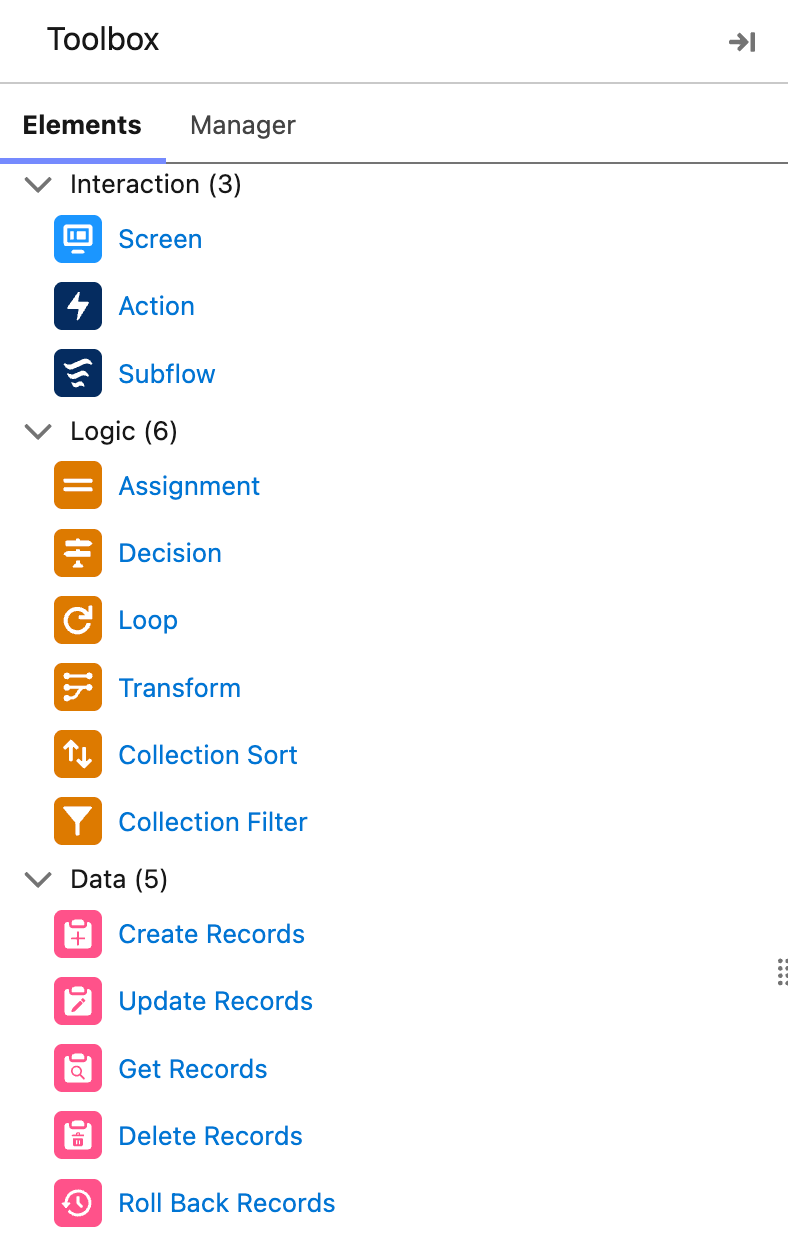
Elements are organized into four main categories in Flow Builder. Here's a high-level overview of each category. We'll explore individual elements in much greater depth in future articles.
Think of Elements as answering the question: "What should this Flow do and how should it do it?"
Elements are organized into four main categories in Flow Builder. Here's a high-level overview of each category. We'll explore individual elements in much greater depth in future articles.
Interaction Elements
Interaction elements allow your Flow to communicate and interact with users or other systems.
Examples include:
When you use them: When your Flow needs to display information, collect input, communicate with users, or invoke other automation.
Examples include:
- Screen: Displays forms and information to users
- Action: Performs specific operations like sending emails, posting to Chatter, or submitting records for approval
- Subflow: Calls another Flow to execute its logic
When you use them: When your Flow needs to display information, collect input, communicate with users, or invoke other automation.
Logic Elements
Logic elements control the Flow's path and decisions, determining what happens based on conditions and data.
Examples include:
When you use them: When your Flow needs to make decisions, evaluate conditions, change data values, or process multiple items one at a time.
Examples include:
- Decision: Creates different paths based on whether conditions are true or false
- Assignment: Changes values in variables or fields
- Loop: Repeats actions for each item in a collection
When you use them: When your Flow needs to make decisions, evaluate conditions, change data values, or process multiple items one at a time.
Data Elements
Data elements interact with the Salesforce database, allowing your Flow to read and modify records.
Examples include:
When you use them: Whenever your Flow needs to work with Salesforce data - finding records, creating new ones, updating information, or removing old data.
Examples include:
- Get Records: Retrieves records from the database based on criteria you specify
- Create Records: Makes new records
- Update Records: Modifies existing records
- Delete Records: Removes records
When you use them: Whenever your Flow needs to work with Salesforce data - finding records, creating new ones, updating information, or removing old data.
Building Block 3: Flow Resources (The "Data")
Flow Resources are containers that hold information your Flow uses while it runs. If Elements are doing things, Resources are the data that is being worked with.
Think of Resources as answering the question: "What information does my Flow need to remember and use?"
Here's an overview of the main resource types. Each will be covered in much more detail in dedicated articles
Think of Resources as answering the question: "What information does my Flow need to remember and use?"
Here's an overview of the main resource types. Each will be covered in much more detail in dedicated articles
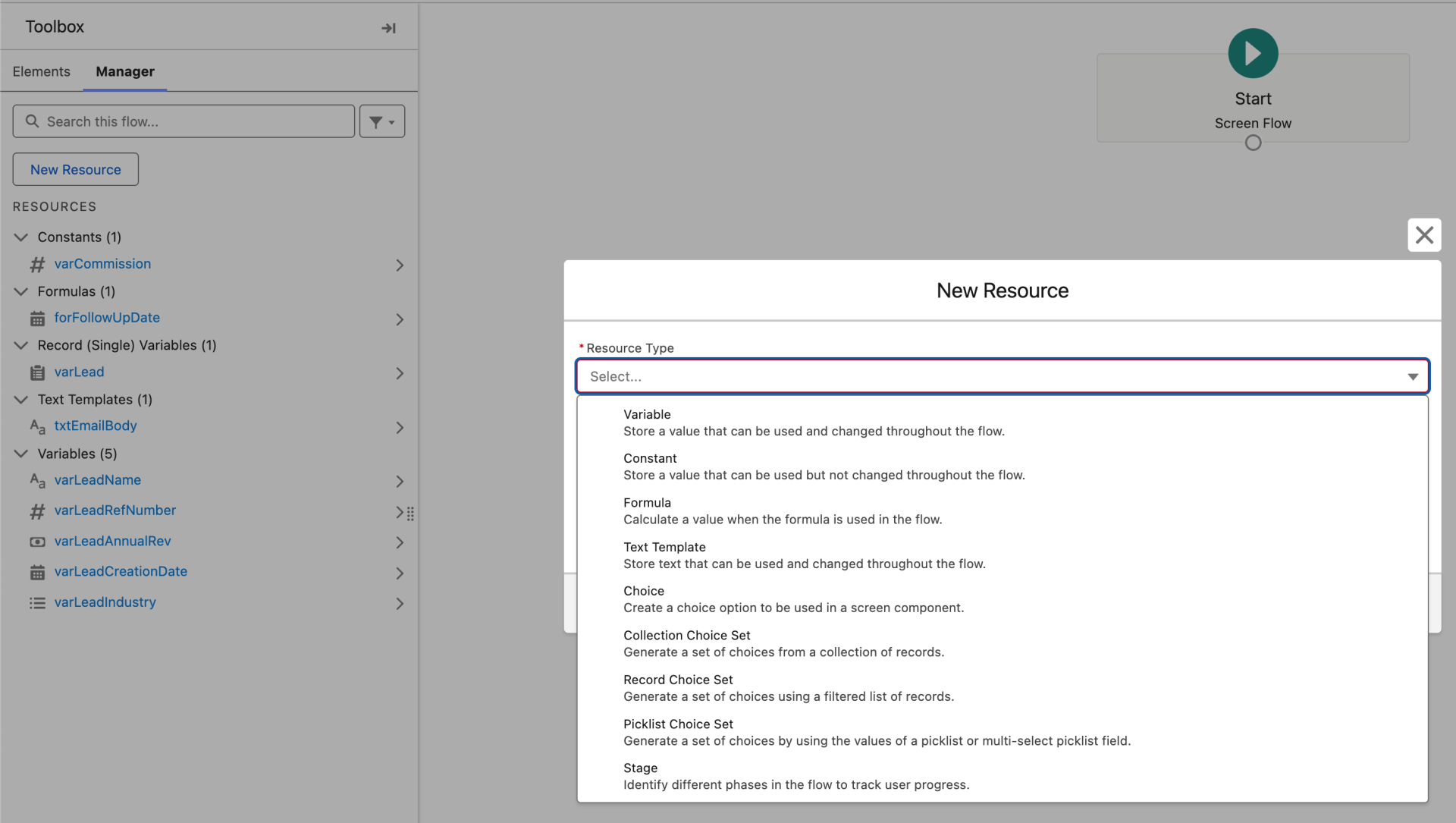
Variables
Variables are containers that store information while your Flow runs. Every time a Flow executes, variables start empty (or with a default value you specify) and can be changed as the Flow progresses.
What they store: Single values like text, numbers, dates, currency amounts, or even entire records with all their fields.
When to use them: When you need to temporarily hold information during the Flow - storing a user's input, saving a calculated result, remembering a record ID for later use, or passing data between elements.
Example: A variable named varCustomerName might store the Customer Name, or varAccount might store the Account record a user chose from a lookup.
What they store: Single values like text, numbers, dates, currency amounts, or even entire records with all their fields.
When to use them: When you need to temporarily hold information during the Flow - storing a user's input, saving a calculated result, remembering a record ID for later use, or passing data between elements.
Example: A variable named varCustomerName might store the Customer Name, or varAccount might store the Account record a user chose from a lookup.
Collections
Collections are special variables that store multiple values of the same type - think of them as lists. Instead of holding one account, a collection holds many accounts.
When to use them: When your Flow processes multiple items - all contacts at an account, all opportunities over a certain amount, a list of email addresses to notify.
Example: A collection named colHighPriorityContacts might store all Contacts marked as High Priority, or colTasksToCreate might store multiple Task records before creating them all at once.
What they store: Multiple records, multiple text values, multiple numbers - any group of items with the same data type.
When to use them: When your Flow processes multiple items - all contacts at an account, all opportunities over a certain amount, a list of email addresses to notify.
Example: A collection named colHighPriorityContacts might store all Contacts marked as High Priority, or colTasksToCreate might store multiple Task records before creating them all at once.
Constants
Constants store fixed values that never change during Flow execution. Unlike variables, once you set a constant's value, it remains the same throughout.
When to use them: When you have a value that stays the same every time the Flow runs but might need to be changed across the entire Flow later (change it once in the constant definition rather than in multiple elements).
Example: A constant named conHighValueThreshold might store the number 50000, representing the dollar amount that qualifies Opportunities as high-value throughout your Flow.
What they store: Fixed reference values your Flow uses repeatedly - standard thresholds, tax rates, default status values, or consistent processing fees.
When to use them: When you have a value that stays the same every time the Flow runs but might need to be changed across the entire Flow later (change it once in the constant definition rather than in multiple elements).
Example: A constant named conHighValueThreshold might store the number 50000, representing the dollar amount that qualifies Opportunities as high-value throughout your Flow.
Formulas
Formula resources calculate values dynamically based on other resources, variables, and field values. They use the same formula syntax you might know from formula fields.
What they calculate: Concatenated text, mathematical operations, date calculations, conditional logic - any calculation you can express in Salesforce formula language.
When to use them: When you need a calculated value based on other data - building a full name from first and last names, calculating days between dates, determining values based on conditions.
Example: A formula named forFullName might combine {!Contact.FirstName} and {!Contact.LastName} with a space between them, or forDaysUntilExpiration might calculate the difference between today and a subscription end date.
What they calculate: Concatenated text, mathematical operations, date calculations, conditional logic - any calculation you can express in Salesforce formula language.
When to use them: When you need a calculated value based on other data - building a full name from first and last names, calculating days between dates, determining values based on conditions.
Example: A formula named forFullName might combine {!Contact.FirstName} and {!Contact.LastName} with a space between them, or forDaysUntilExpiration might calculate the difference between today and a subscription end date.
Text Templates
Text templates store blocks of formatted text that can include merge fields - essentially rich text that incorporates dynamic data from your Flow.
What they store: Email bodies, confirmation messages, formatted instructions, or any text that needs to include data from variables or fields.
When to use them: When you need to display or send text content that includes dynamic information—email messages with personalized data, screen instructions that reference the current record, formatted summaries.
Example: A text template for an email might include: "Dear {!Contact.FirstName}, your order #{!Order.OrderNumber} will arrive on {!Order.DeliveryDate}."
What they store: Email bodies, confirmation messages, formatted instructions, or any text that needs to include data from variables or fields.
When to use them: When you need to display or send text content that includes dynamic information—email messages with personalized data, screen instructions that reference the current record, formatted summaries.
Example: A text template for an email might include: "Dear {!Contact.FirstName}, your order #{!Order.OrderNumber} will arrive on {!Order.DeliveryDate}."
Putting It All Together: A Simple Example
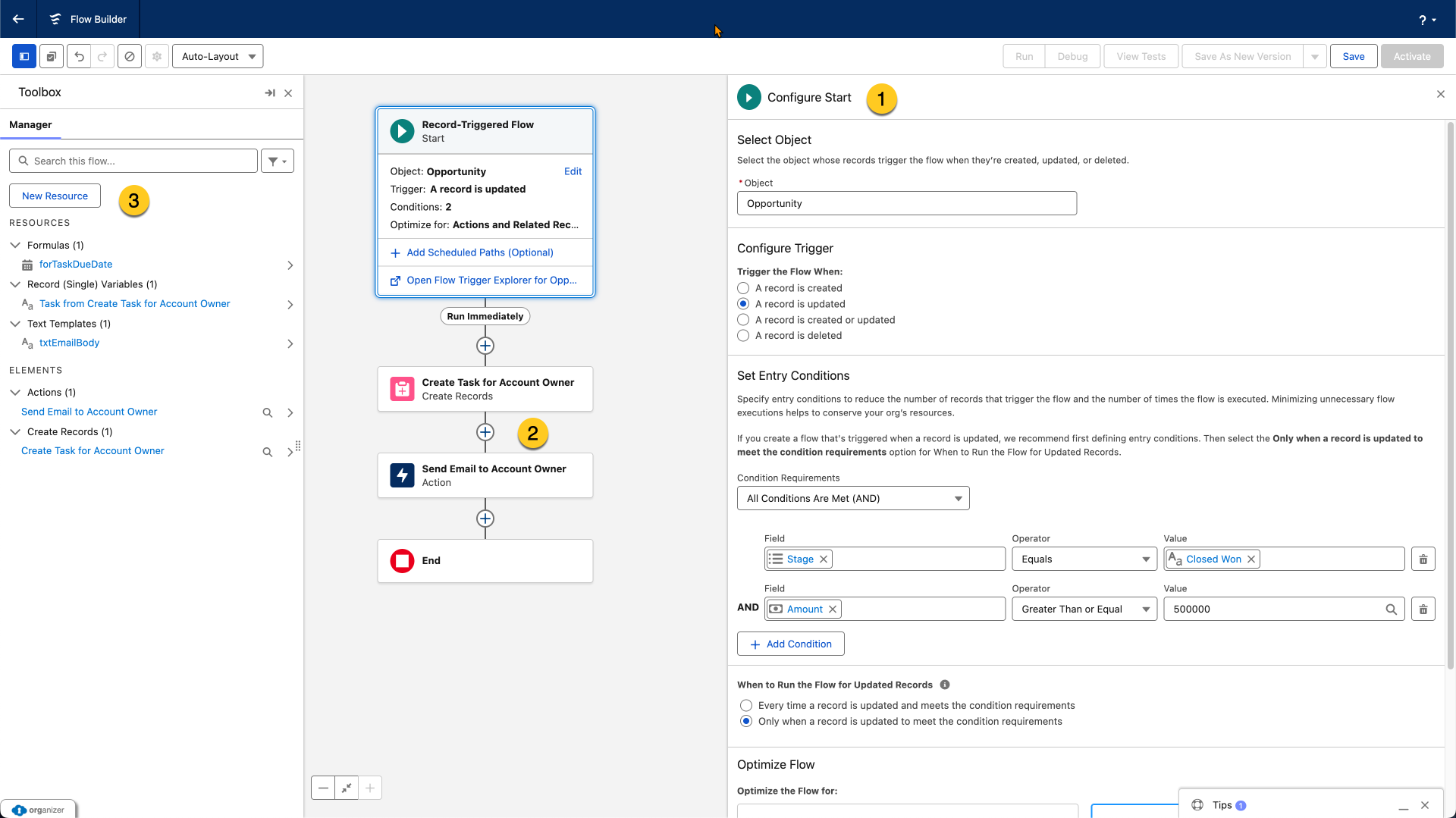
Let's see how Flow Type, Elements, and Resources work together in a real Flow. This example is intentionally simple to clearly demonstrate how the three building blocks combine.
Business Requirement: When an Opportunity is Closed Won with an Amount over $500,000, automatically create a high-priority Task for the Account Owner and send them an email notification.
Building Block 1 - Flow Type: Record-Triggered Flow (After-Save)
Why this type: The automation needs to run when an Opportunity record is updated
Configuration: Triggers when Opportunity is created or updated, only when Stage changes to "Closed Won" and Amount is greater than $500,000
Building Block 2 - Flow Elements:
Create Records Element: Creates a Task record assigned to the Account Owner, with high priority and due date from the formula forTaskDueDate (see Resources below)
Send Email Action: Sends notification email to the Account Owner using the text template
Building Block 3 - Flow Resources:
Formula: forTaskDueDate (Date) - Calculates TODAY() + 3 to set the task due date three days from now
Text Template: txtEmailBody (Text) - Stores the formatted email message: "Congratulations! Opportunity {!$Record.Name} has closed for {!$Record.Amount}. A follow-up task has been created and is due on {!forTaskDueDate}."
How They Connect and Work Together
The Flow Type (Record-Triggered) determines WHEN the Flow runs;
- When an Opportunity Stage is updated to Closed Won with an Amount over $500,000.
The Elements determine WHAT happens:
- Create Records makes the Task assigned to the Account Owner
- Send Email notifies the Account Owner
The Resources provide the DATA the elements work with:
- The formula calculates when the task is due (3 days from today)
- The text template builds the email message with dynamic opportunity details
Together, these three building blocks create complete automation. The Flow type triggers it, the elements perform the work, and the resources provide the information needed.
What's Next: Deep Dive into Flow Types
Now that you understand the three building blocks and how they work together, you're ready to explore each building block in depth.
In the next article, we'll take a comprehensive look at Flow Types. You'll learn:
After we cover Flow Types in detail, subsequent articles will dive deep into Flow Elements and Flow Resources, giving you comprehensive knowledge of all three building blocks.
In the next article, we'll take a comprehensive look at Flow Types. You'll learn:
- Explanations of each Flow type with multiple examples
- When to choose each type for different business scenarios
- The critical distinction between Before-Save and After-Save Record-Triggered Flows
- How to decide which Flow type fits your automation requirements
- Common use cases and best practices for each type
- Understanding Flow types thoroughly is essential because choosing the right type is your first and most important decision when building any automation. The type you select determines what's possible in your Flow and how efficiently it will run.
After we cover Flow Types in detail, subsequent articles will dive deep into Flow Elements and Flow Resources, giving you comprehensive knowledge of all three building blocks.
Summary: Key Takeaways
-
Every Flow consists of three building blocks that work together: Flow Type (when it runs), Flow Elements (what it does and how it does it), and Flow Resources (what data it uses)
-
Flow Types determine when automation runs - the five main types are Record-Triggered (data changes), Screen (user interaction), Schedule-Triggered (time-based), Autolaunched (called by other processes), and Platform Event-Triggered (event messages)
-
Flow Elements are the actions your Flow performs - organized into three categories: Interaction (communicate with users), Logic (decisions and control), and Data (database operations)
-
Flow Resources hold information your Flow uses - including Variables (temporary storage), Constants (fixed values), Formulas (calculations), Text Templates (formatted text), Choices (selection options), and Stages (progress tracking)
-
The three building blocks are interdependent - you need a type to trigger the Flow, elements to define the actions, and resources to provide the data those actions work with
-
This is just an overview - each building block will be explored in much greater depth in dedicated articles, starting with a comprehensive look at Flow Types in the next article
-
Understanding the relationship between the three is more important at this stage than memorizing every element or resource type - focus on grasping how they fit together to create complete automation
Think of this article as your orientation to Flow's architecture. You now know the major components and how they relate. In the articles ahead, we'll build your expertise in each area, giving you the knowledge needed to build solid and reliable Flows.

Copyright © 2025
Company
-
About
-
Careers
-
Team
-
Contact
Legal
-
Privacy Policy
-
Terms of Use
-
Cookie Policy